Fix posture first, then power and connectivity, then lighting. Convenience gadgets come last.
Most desk gadgets promise productivity and deliver clutter. The useful ones solve a repeated annoyance: poor posture, tangled charging, bad video calls, limited ports or a desk that must be reset every morning. This guide focuses on upgrades that earn their space.
Start with the problem, not the product
Before buying anything, write down what interrupts your work for three days. Do you keep bending toward the laptop? Move one charger between devices? Lose time reconnecting accessories? Buy only when a gadget removes a problem you can clearly name.
Nine desk gadgets that can genuinely help
1. A stable laptop stand
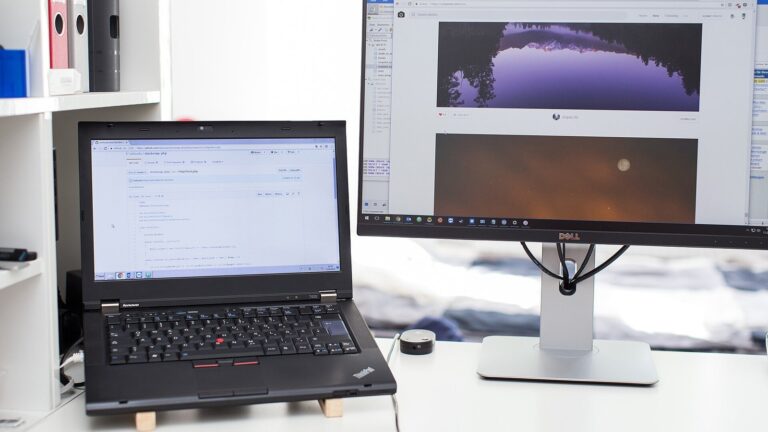
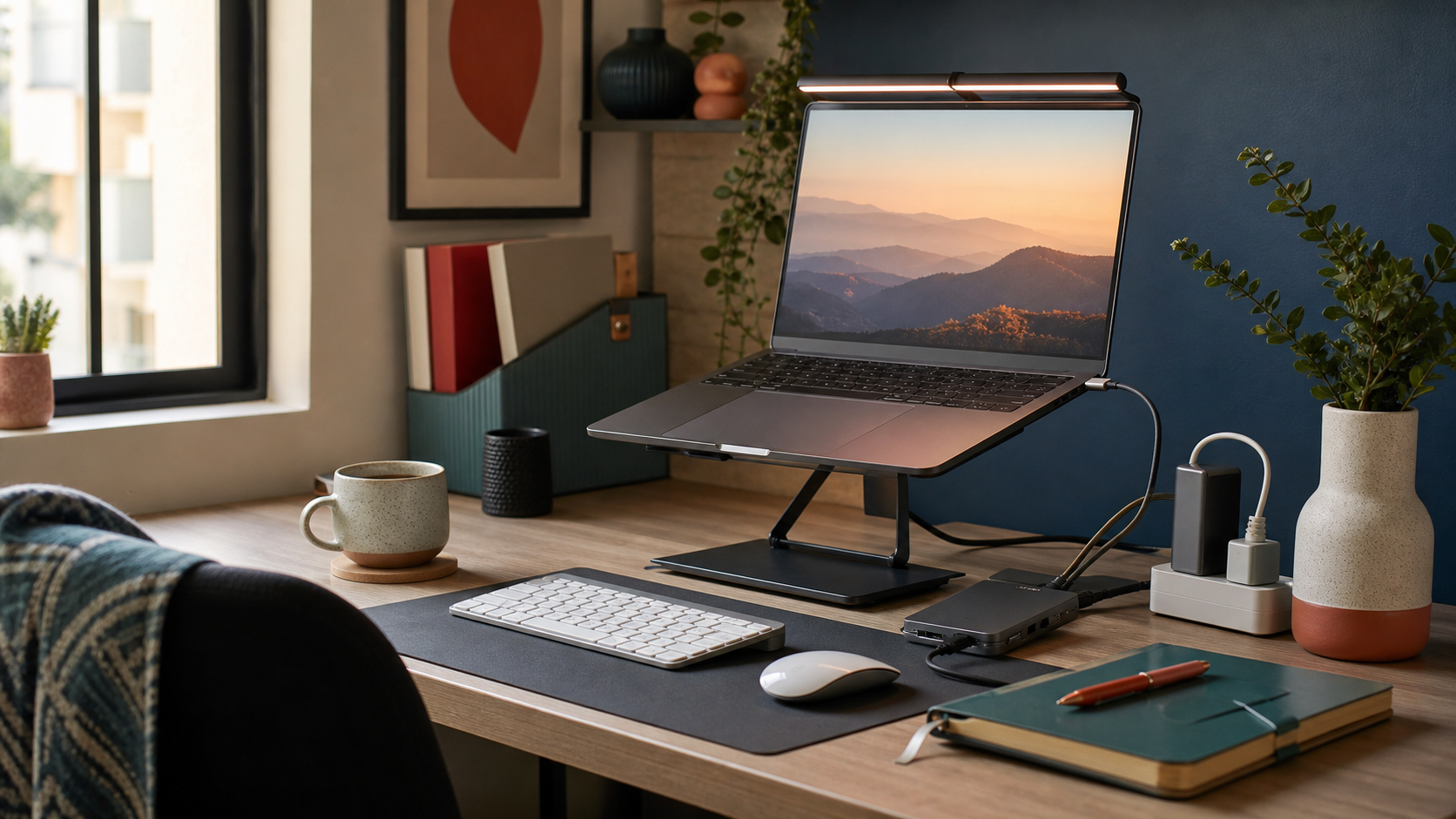
A stand raises the screen closer to eye level and frees space beneath the laptop. Choose a rigid design with ventilation and enough weight that typing or adjusting the screen does not make it wobble. A stand works best with an external keyboard and mouse; raising the laptop while continuing to type on it can create a different posture problem.
2. A compact USB-C hub
A hub is useful when your laptop lacks the ports you actually use. List those ports first—HDMI, USB-A, SD card, Ethernet or power delivery—and buy the simplest hub that covers them. Check the supported display resolution and charging wattage rather than relying on the number of ports printed on the box.
3. A monitor or laptop light bar
A well-designed light bar illuminates the desk without shining directly into your eyes or creating strong screen reflections. It is most useful in a dim room or for reading notes beside a monitor. It is not a substitute for comfortable room lighting.
4. A proper cable system
Cable clips, reusable ties and an under-desk tray are less exciting than a new electronic gadget, but they remove visual noise and stop cables falling behind the desk. Route power separately from cables you regularly unplug, and leave enough slack for a sit-stand desk if you use one.
5. A multi-device charger
One reliable charger can replace several adapters. Calculate the power your laptop, phone and accessories need when charged together. Prefer a reputable charger with clearly stated output per port and the appropriate safety certifications; a tiny high-wattage charger is not automatically the better choice.
6. An external keyboard and mouse
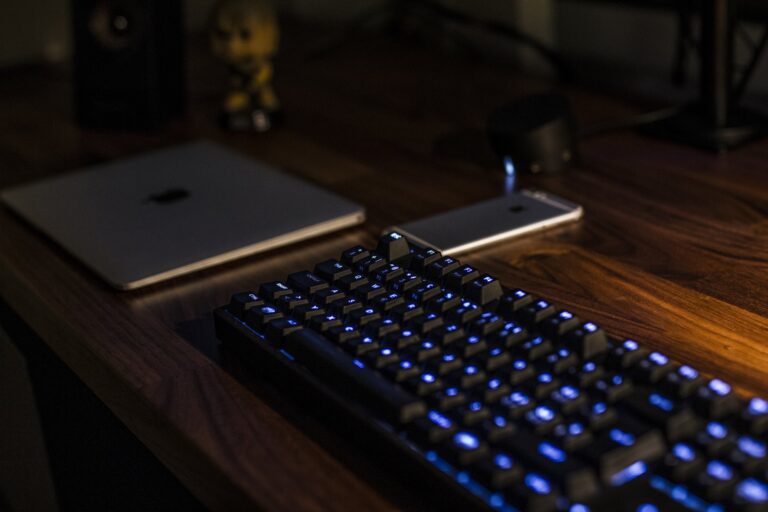
These are essential if your laptop is raised on a stand. Comfort matters more than fashionable switch types. Pick a layout you already understand, make sure the mouse suits your hand and keep both close enough that your shoulders remain relaxed.
7. A webcam or phone mount
Good positioning often improves video calls more than an expensive camera. Put the lens near eye level and face a window or soft lamp. If your phone produces better video than your laptop, a secure mount may be the smarter upgrade.
8. A large desk mat
A desk mat gives the keyboard and mouse a consistent surface, protects the desk and visually groups the work area. Choose a washable material and a size that still leaves space for writing and drinks.
9. A small timer
A physical timer can keep focus sessions separate from the phone that distracts you. It is useful only if you already work well with timed blocks; otherwise it becomes another object asking for attention.
What usually is not worth it
- Novelty USB gadgets that solve no recurring problem.
- Cheap wireless chargers that run hot or charge unpredictably.
- Oversized control decks when keyboard shortcuts would do the job.
- Mini desk vacuums unless crumbs are genuinely a daily issue.
- RGB lighting bought without a plan for glare or cable routing.
The sensible upgrade order
Fix posture first, then power and connectivity, then lighting, and finally convenience. A laptop stand with an external keyboard may help more than five smaller gadgets combined. The best desk setup is not the one with the most technology; it is the one that disappears while you work.
Keep reading: Mechanical vs Membrane Keyboard: Which Suits Your Desk Work?.