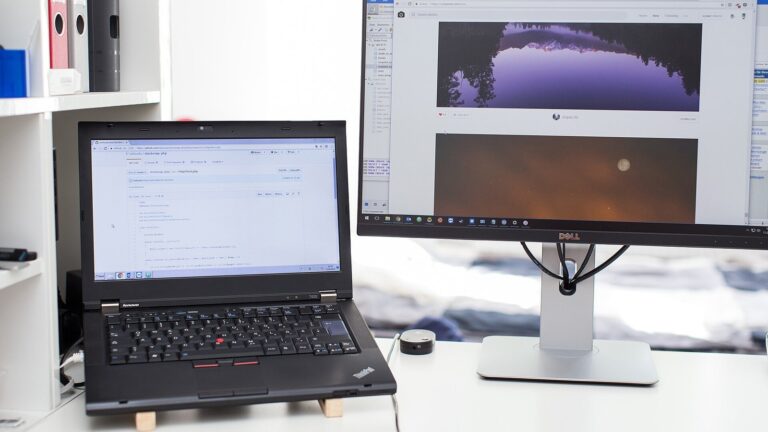
Then check three things before price: that your laptop’s port can drive it, a matte anti-glare screen with real flicker-free backlighting, and whether you need a height-adjustable stand or a VESA mount for an arm.
A laptop screen is fine for an hour. For eight hours of spreadsheets, documents and video calls, a bigger external monitor is the single upgrade that changes the most about a home desk. The good news for November 2026: ₹15,000 now buys more screen than many buying guides suggest.
This guide is about choosing the monitor itself. It’s built from maker spec sheets, TÜV Rheinland’s certificate database and Indian listings checked on 15 November 2026, not from hands-on testing.
Start with your desk and your laptop, not the monitor
Two things decide most of the choice before you open a shopping app.
Desk depth sets the size
You want the screen roughly an arm’s length away, about 50 to 75 cm, which is in line with OSHA’s workstation guidance. A 27-inch screen needs the far end of that range, so it works best on a desk 60 cm deep or more. On a narrow 45 to 50 cm study table, a 24-inch screen is more comfortable, because you won’t have to turn your head to read the corners.
Your laptop’s ports set what you can connect
- HDMI: almost every office laptop has one. QHD at 60 Hz is within the range of older HDMI 1.4 ports, but higher refresh rates at QHD need HDMI 2.0 or DisplayPort. Check your laptop’s spec sheet for “maximum external resolution”.
- USB-C: many mid-range Indian laptops have a USB-C port that carries data and charging only, not video. If you want a monitor over USB-C, look for DisplayPort Alt Mode in the laptop’s specs, or a small display (D-shaped) or Thunderbolt icon next to the port.
- “USB-C” on the monitor: read it carefully too. On the Dell P2425H, for example, the USB-C port is a downstream data port with 15 W charging, not a video input; the USB-C hub version is a different, more expensive model (P2425HE).
Size and resolution: 24-inch Full HD or 27-inch QHD
What makes text look crisp or soft is pixel density, measured in pixels per inch (PPI). The same 1920 x 1080 resolution is spread thinner on a bigger screen:
| Screen | Pixel density | For work |
|---|---|---|
| 24-inch Full HD (1080p) | About 92 PPI | Sharp enough at arm’s length; best for compact desks |
| 27-inch Full HD (1080p) | About 82 PPI | Text looks soft and slightly fuzzy up close. Skip for office work |
| 27-inch QHD (1440p) | About 109 PPI | Crisp text, and room for two documents side by side |
The rule that follows: at 24 inches, 1080p is fine. At 27 inches, insist on QHD. A 27-inch 1080p monitor is often the cheapest big screen on a sale page, and it’s the one most likely to disappoint for reading and spreadsheets.
Panel type and refresh rate
Choose IPS for text work: colours and contrast stay even when you look at the screen from an angle, as you do on a video call from a sofa. Skip TN panels; consider VA only if the budget forces it. Refresh rate matters less than listings suggest. 60 Hz is enough for documents; 75 to 100 Hz makes scrolling and moving the mouse feel smoother, which is nice to have but not a reason to pay more.
Eye comfort: what’s real and what’s box art
Eye strain at a screen mostly comes from glare, brightness that doesn’t match the room, and not blinking enough. A monitor can help with the first two.
- Matte, anti-glare coating: the most useful eye-care feature in a bright Indian room with a window behind or beside you. Most work monitors have it; glossy screens are rarer but still around.
- Flicker-free backlight: cheap backlights dim by pulsing on and off, which some people notice as strain or headaches at low brightness. Flicker-free (DC-dimmed) backlights avoid this.
- Brightness of 250 to 300 nits: plenty for a home office. More useful is turning brightness down in the evening so the screen doesn’t glow brighter than the room around it.
- Low blue light: a “hardware” low blue light panel shifts the backlight itself, while software modes just tint the screen yellow. Neither is proven to prevent eye disease, so treat this as a comfort feature, not a medical one.
- Ambient light sensors: some models, such as BenQ’s GW2490 with Brightness Intelligence, adjust brightness to the room automatically.
Check TÜV claims on Certipedia
A TÜV logo on a listing photo is easy to add and hard to trust. TÜV Rheinland publishes its certificates on Certipedia, where you can search the model number. Two examples from this guide: the BenQ GW2490 holds Flicker Free and Low Blue Light (Hardware Solution) certificates there, and the Dell SE2726D an Eye Comfort 3-star certificate. The MSI PRO MP273Q E7, by contrast, lists anti-flicker and less blue light as features, but its official certificate list shows only CB/CE and Energy Star. That doesn’t make it bad; it just means the claim is the maker’s, not an independent lab’s.
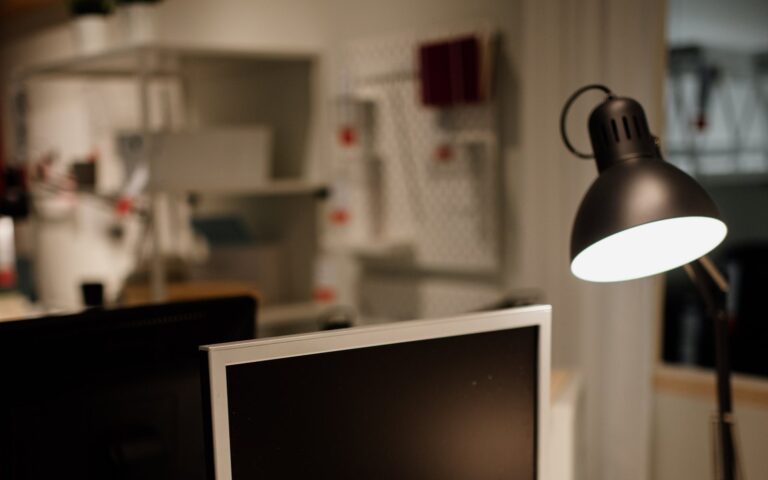
Lighting around the screen matters as much as the screen itself. For glare from lamps and bias lighting, see our desk lamp for long work hours guide.
Stand or arm: decide before you buy
Most monitors under ₹15,000 come with a tilt-only stand, so the screen sits where the stand puts it. If that’s too low for you, you need either a model with a height-adjustable stand (usually ₹3,000 to ₹6,000 more) or a VESA 100 x 100 mount so you can add a monitor arm later. All the models below have VESA 100 mounting. For the right screen height and when an arm makes sense, see our laptop stand and monitor height guide.
What ₹15,000 buys right now
Three budget tiers, with real listings checked on 15 November 2026. These aren’t recommendations, since we haven’t tested them, and prices move weekly, often by ₹1,000 to ₹2,000 with bank offers during sales.
| Monitor | What the spec sheet says | Price seen (15 Nov 2026) |
|---|---|---|
| About ₹8k to ₹9k: 24-inch IPS Full HD BenQ GW2490 | 23.8-inch IPS, 1080p, 100 Hz, 2 x HDMI and DisplayPort, speakers, anti-glare, brightness sensor, tilt-only stand, VESA 100 | ₹8,498 on Flipkart; about ₹7,500 to ₹8,600 at PC retailers |
| About ₹11k to ₹14k: 24-inch with a height-adjustable stand BenQ GW2490T | Same core specs as the GW2490 (23.8-inch IPS, 1080p, 100 Hz), plus 110 mm height adjustment, swivel and pivot | ₹11,449 on Amazon.in and Flipkart |
| Dell P2425H | 23.8-inch IPS, 1080p, 100 Hz, 150 mm height adjustment with swivel and pivot, HDMI, DisplayPort, VGA, USB hub (USB-C is data and 15 W charging only) | ₹14,099 (Amazon, via Smartprix) |
| About ₹11k to ₹14k: 27-inch IPS QHD Dell SE2726D | 27-inch IPS, 1440p, 144 Hz, 300 nits, anti-glare, HDMI and DisplayPort 1.4, tilt-only stand, VESA 100 | ₹13,299 on Flipkart and Amazon |
| AOC Q27B3S2 | 27-inch IPS, 1440p, 100 Hz, 250 nits, HDMI 2.0 and DisplayPort, flicker-free (maker’s claim), tilt-only stand, VESA 100 | ₹12,599 on Amazon.in and AOC India; ₹12,899 on Flipkart; from ₹10,989 at a PC retailer |
| MSI PRO MP273Q E7 | 27-inch IPS, 1440p, 75 Hz, 250 nits, anti-glare, 2 x HDMI 2.0 and DisplayPort 1.2a, tilt-only stand, VESA 100, external power brick | ₹11,999 on Amazon; ₹12,799 on Flipkart |
Notice what has changed. Many guides still say a 27-inch QHD monitor needs ₹18,000 to ₹20,000. On today’s listings, three are under ₹13,500. If your desk is deep enough, that’s the best value in this budget.
Some models in older guides have quietly gone. The LG 24MK430H shows out of stock on Smartprix, and Dell’s own India store lists the P2422H as unavailable (the P2425H replaces it). If a listing for an older model looks cheap, check the seller and warranty before buying.
Warranty, service and power cuts
- Check on-site service where you live. Dell, LG and HP tend to have wide service networks; some brands are strong mainly in metros. Look up the service centre for your pincode before buying.
- Protect it from power cuts and surges. Plug the monitor into a surge protector or the home inverter/UPS circuit, especially in areas with frequent outages.
- Test for dead pixels on day one, while you’re still in the return window.
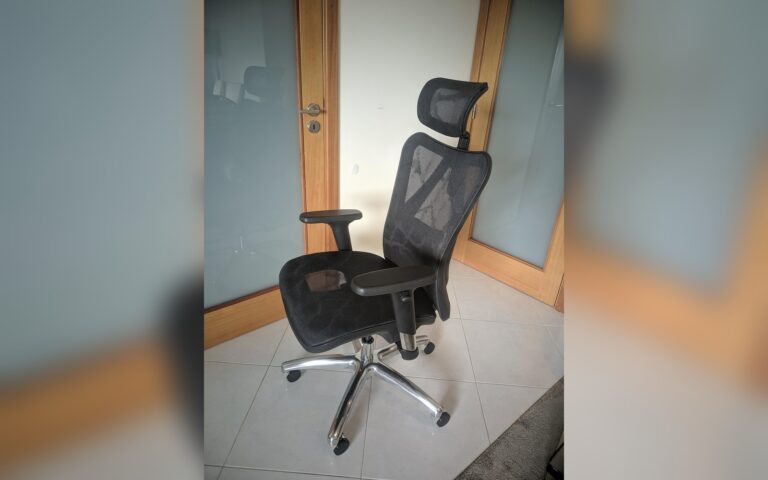
A monitor works best as part of a sensible setup. Pair it with a chair that fits (our office chair under ₹15,000 guide) and the few accessories that genuinely help, from our list of 9 desk gadgets that actually improve a work-from-home setup.
FAQ
Is a 24-inch or 27-inch monitor better for work from home?
A 27-inch QHD monitor is better if your desk is at least 60 cm deep: you can fit two documents side by side comfortably. On a shallower desk, a 24-inch Full HD screen is easier on the neck and costs less.
Is 1080p enough on a 27-inch monitor?
Not for office work. At about 82 pixels per inch, text looks soft at normal desk distance. Choose QHD (2560 x 1440) at 27 inches; it’s now available under ₹15,000.
Is 60 Hz enough for office work?
Yes. 75 to 100 Hz makes scrolling feel smoother, and many budget monitors include it now, but it isn’t worth paying extra for if you don’t game.
Does a low blue light monitor prevent eye strain?
It can make evening use more comfortable, but it isn’t a cure. Glare, too-bright screens and too little blinking cause most strain, so a matte screen, sensible brightness and regular breaks matter more.
Can I connect a monitor to my laptop’s USB-C port?
Only if the port supports video (DisplayPort Alt Mode or Thunderbolt). Many mid-range laptops have data-only USB-C, so check the spec sheet; otherwise use HDMI.
Bottom line
Measure your desk and check your laptop’s ports first. Then choose 24-inch Full HD for compact desks or 27-inch QHD for deeper ones, insist on IPS and a matte screen, verify flicker-free and low blue light claims on Certipedia, and decide whether you need a height-adjustable stand or an arm. Under ₹15,000, that gets you a screen you’ll be glad to look at all day.
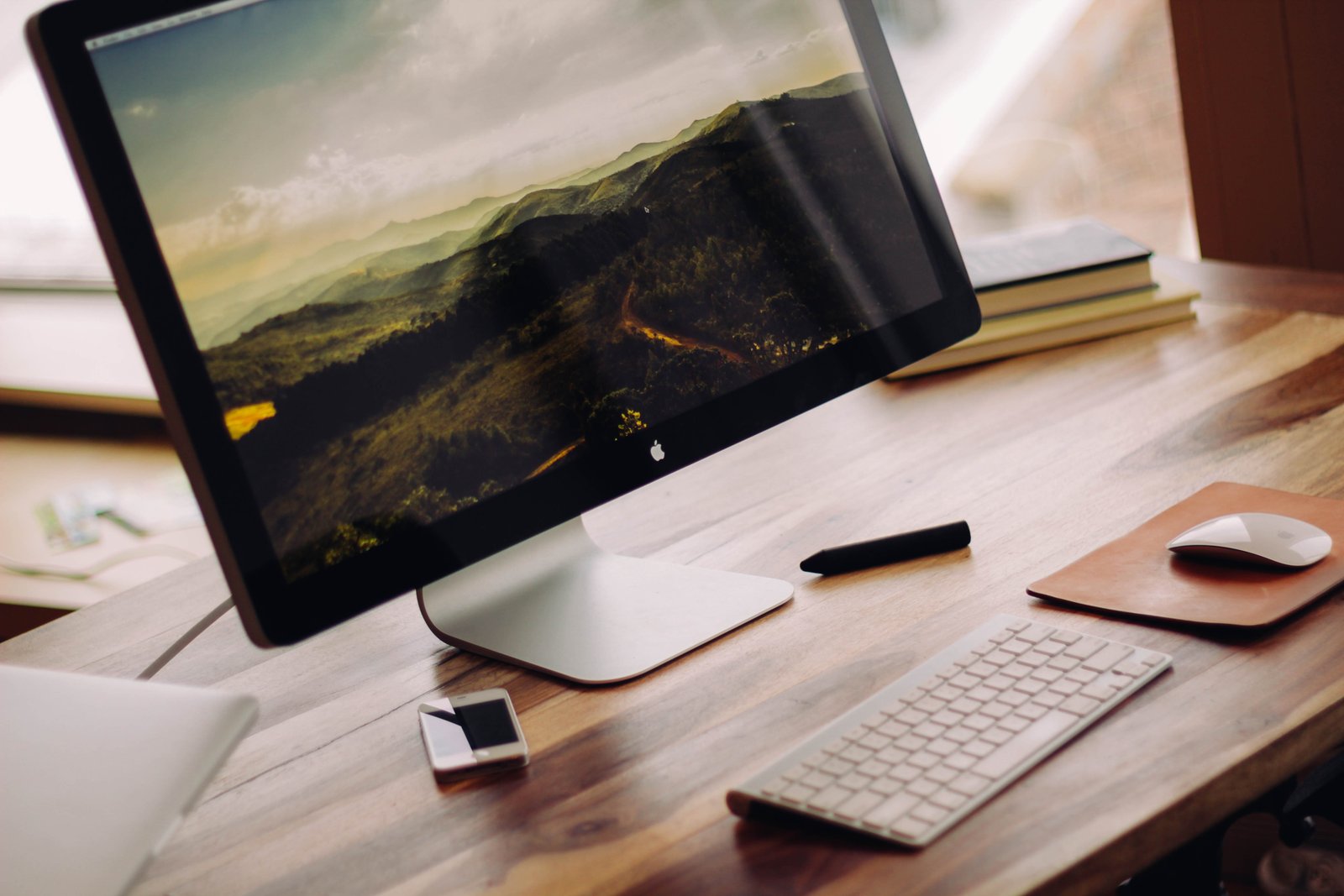
Photo: Luke Chesser, Wikimedia Commons (via Unsplash), CC0 1.0. Prices checked on Flipkart, Amazon.in, Smartprix, AOC India and Indian PC retailers on 15 November 2026 and will change. Specs from maker spec sheets; certificates from TÜV Rheinland’s Certipedia. Pixel densities are rounded.